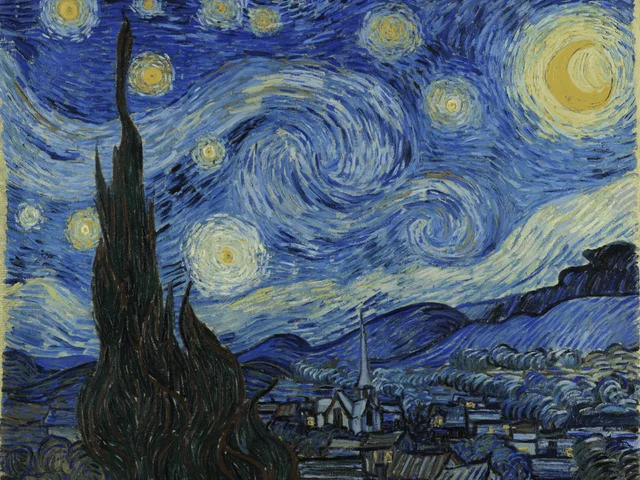
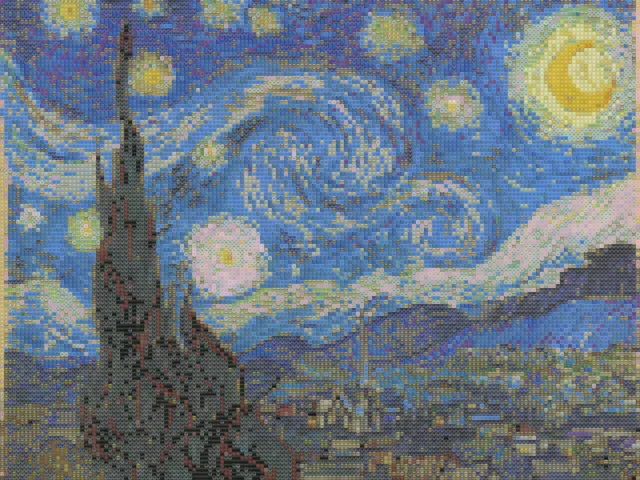
Van Gogh Starry Night emoji mosaic
detailed / mixed / 10px
Use this exampleMake emoji texture part of the picture. Start with Bold mode and a Nature palette.
Drop your photo here
JPG, PNG, or WEBP. Up to 10MB. Your photo stays in this browser.
detailed / mixed / 10px
Use this example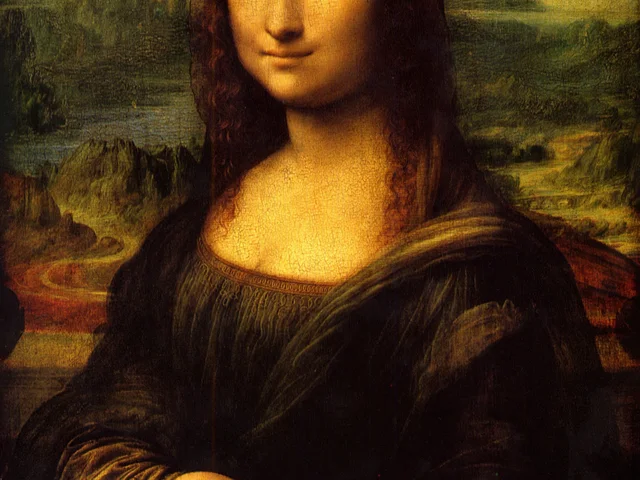
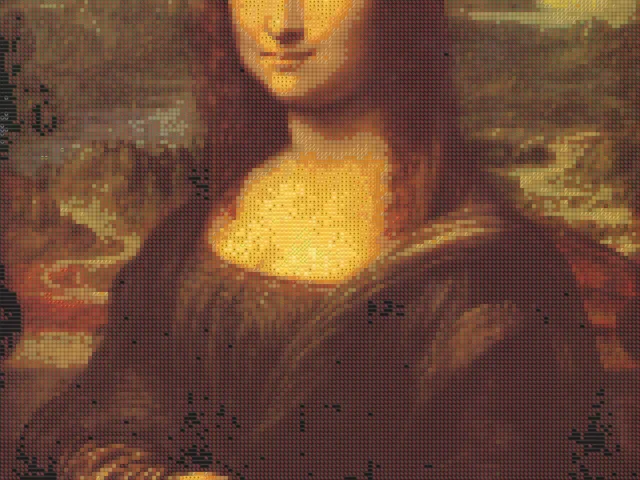
detailed / mixed / 10px
Use this example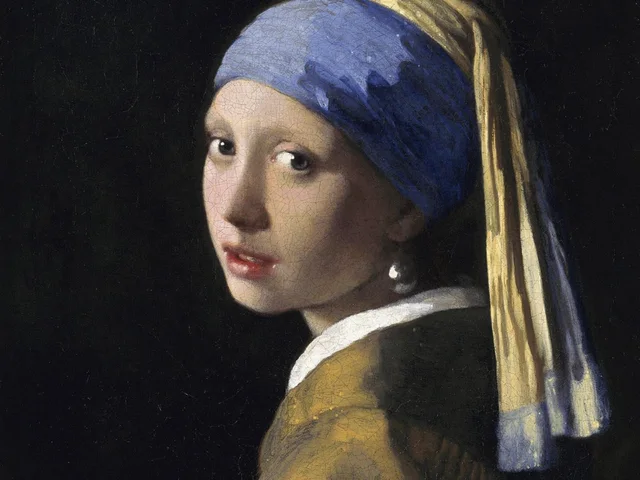
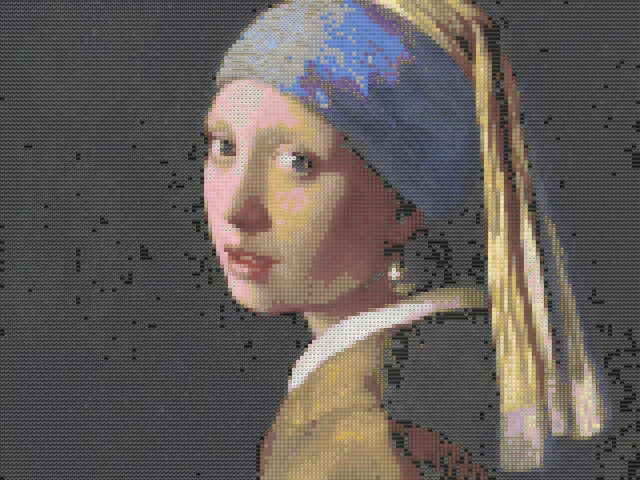
detailed / mixed / 10px
Use this example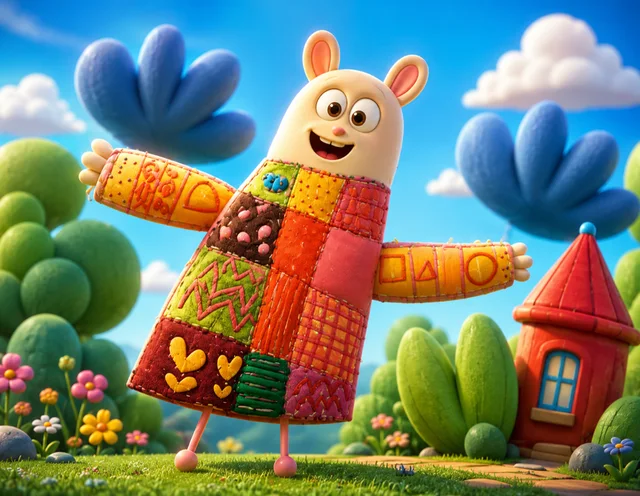
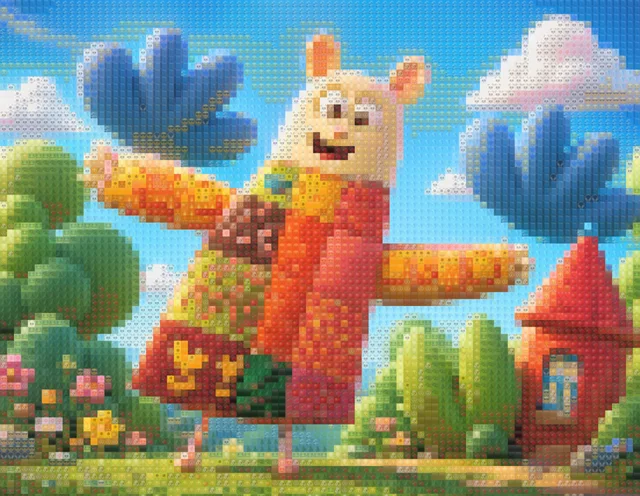
bold / faces / 20px
Use this exampleBold mode gives the individual emoji more visual presence. Large areas of sky, clothing or painted color are useful starting points because they can support a recognizable tile pattern without relying on very small details.
For a closer reconstruction, switch to Detailed and compare the same image. An artistic result does not have to be the closest color match; decide whether your priority is the original silhouette, the emoji theme or an abstract texture.
This page starts with Nature symbols. Their available colors affect the result, so the same photo can look different with Mixed, Objects or Symbols. The upload analysis keeps the selected mode and palette while adapting other settings to the source.
Try one palette at a time with the same emoji size. If an important color disappears, return to Mixed rather than increasing tolerance repeatedly.
For a tall social image, test 4:5 or 9:16 in Advanced settings. For a landscape composition, try 16:9. These settings crop from the center, so prepare the source separately if important details are close to an edge.
Text and thin lines often lose readability when replaced by emoji tiles. Add captions after exporting instead of expecting small lettering inside the source photo to survive the conversion.
HD PNG allows a longest edge up to 1800 pixels, subject to source size. It is not a vector file or a 4K/8K export. Check the pixel dimensions against the size of the print you intend to make.
The painting examples demonstrate a visual treatment, not a promise that every source will work equally well. Only use images and artwork you have permission to reproduce or share.
Bold changes the starting tile size and matching settings and draws the emoji more prominently. Detailed favors the structure of the source. You can still adjust either mode after choosing it.
No. It is the starting style on this page. Mixed gives broader color choices, and other palettes can produce a different deliberate texture.
Not in this version. The tool exports a PNG with a longest edge up to 1800 pixels in HD, and it does not enlarge smaller sources.
Small text and thin strokes can be lost in the tile grid. A source with broad shapes works better; add any important caption after exporting.
No account is required for the current tool. Preview and HD PNG exports are free and have no watermark. HD uses a longest edge of up to 1800 pixels and does not enlarge a smaller source image.
No. Opening a file, generating the mosaic and downloading PNG happen locally. Creating a share link is a separate, confirmed action that uploads the generated PNG and settings. Anyone with that link can view the result; the original photo is not included.