

Fashionable young man emoji mosaic
detailed / mixed / 10px
Use this exampleConvert JPG, PNG and WebP into an emoji mosaic PNG, without uploading your original.
Drop your photo here
JPG, PNG, or WEBP. Up to 10MB. Your photo stays in this browser.
detailed / mixed / 10px
Use this example
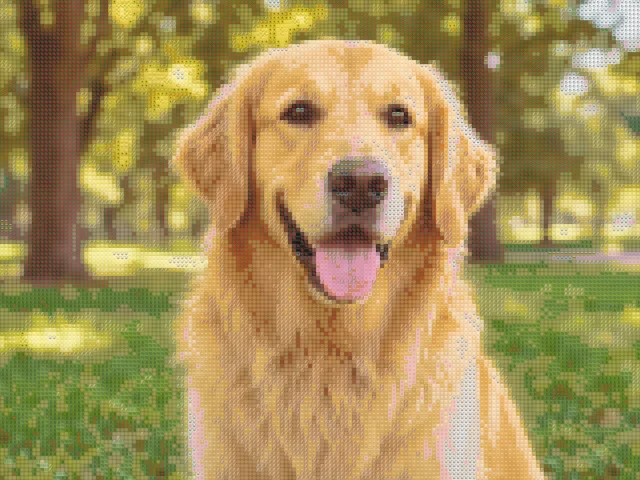
detailed / mixed / 10px
Use this example
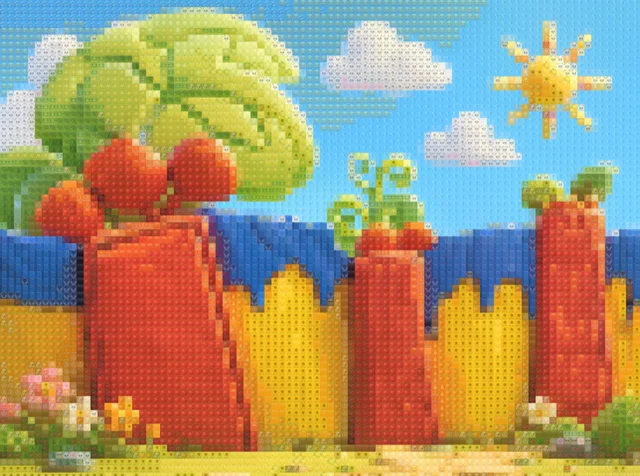
bold / faces / 20px
Use this exampleOpen a JPG, PNG or WebP file up to 10MB. The browser decodes the image, analyzes its colors and creates a mosaic preview. It does not create a single custom emoji, a sticker pack or a text-only message.
Phone photos saved as HEIC need to be converted to a supported format first. Renaming the extension does not convert the file. If an otherwise supported image fails, export a fresh copy from your photo editor and try again.
For a transparent source, choose Transparent under Advanced settings if you want an output without a solid background. White, Black and Custom change the canvas background. They do not automatically remove a photographed background from a normal JPG.
Hide dark / transparent areas also affects which tiles are drawn. If dark parts of a subject disappear, turn it off and compare again before changing the palette.
Original keeps the input aspect ratio. Square, 4:5, 9:16 and 16:9 use a centered crop, so subjects near the edge can be cut off. There is no manual crop handle in this version; reposition the subject in your photo editor when the center crop is not suitable.
Preview and HD both show the final pixel dimensions above the result. Small images are not enlarged. HD increases the maximum longest edge, not the dimensions of every input file.
Download PNG saves a raster image of the generated mosaic. The original file is left unchanged. On mobile, the browser may save the file to Downloads rather than directly to the Photos app.
If export fails, try Preview quality or a smaller source. Keep the page open until the export operation finishes; choosing a new file starts a new mosaic.
Use JPG, JPEG, PNG or WebP up to 10MB. Convert HEIC and other unsupported formats before opening them. A file with a supported name can still fail if it is damaged or its actual format is different.
No. The output is a whole picture reconstructed from many emoji tiles. It is not a custom emoji or a face-to-sticker service.
No. This option changes the output canvas background. It does not segment the source image. A transparent source is needed when you want areas to remain transparent.
Fixed output shapes use a centered crop. Choose Original to retain the full source image, or prepare a different crop before opening the file.
No. The output is limited by both the source dimensions and the selected quality. HD allows up to 1800 pixels on the longest edge without upscaling.
No. Opening a file, generating the mosaic and downloading PNG happen locally. Creating a share link is a separate, confirmed action that uploads the generated PNG and settings. Anyone with that link can view the result; the original photo is not included.