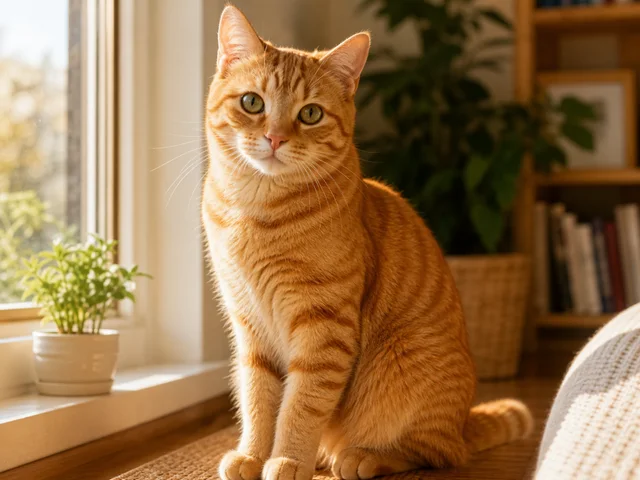
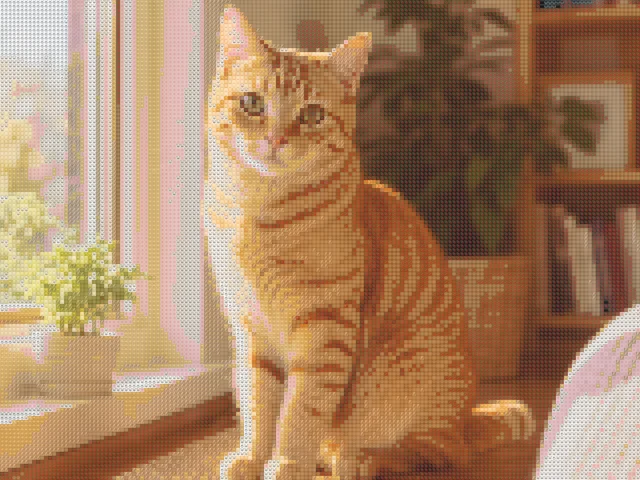
Cat photo emoji mosaic
detailed / mixed / 10px
Use this exampleTurn a pet photo into emoji art with recognizable eyes and outlines. Start with animal tiles.
Drop your photo here
JPG, PNG, or WEBP. Up to 10MB. Your photo stays in this browser.
detailed / mixed / 10px
Use this example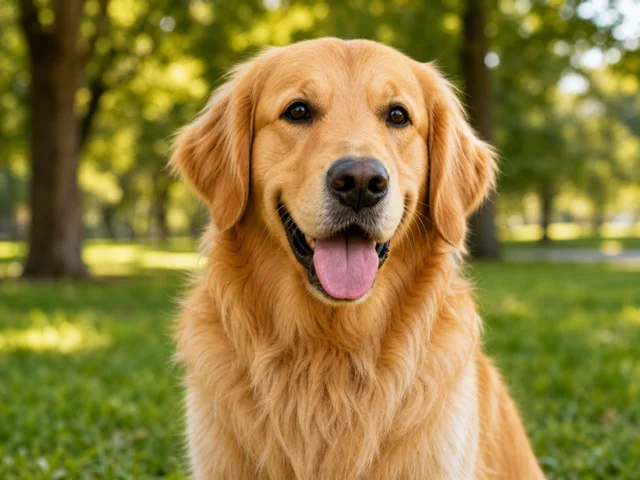
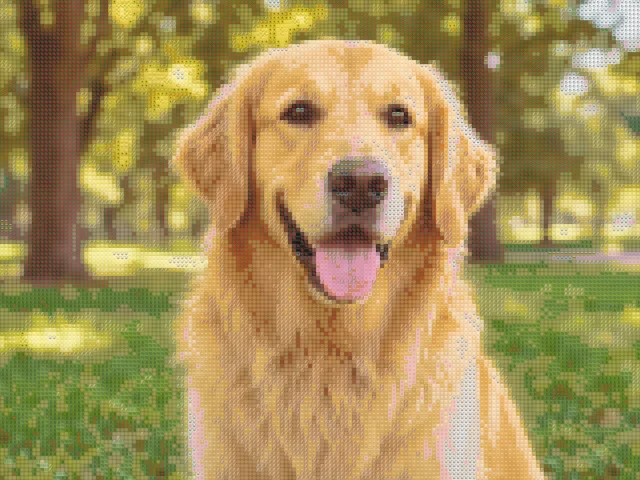
detailed / mixed / 10px
Use this example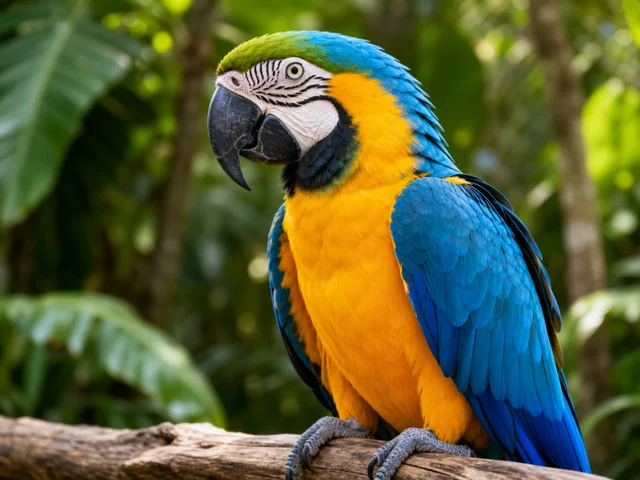
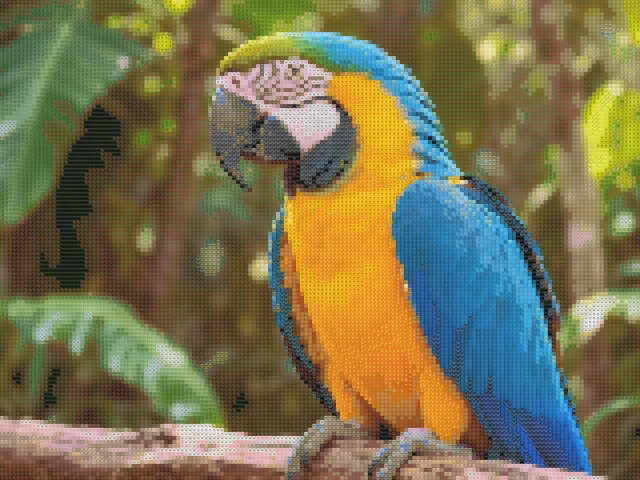
detailed / mixed / 10px
Use this exampleChoose a photo where one pet fills most of the frame. The shape of the ears, nose and eyes gives the mosaic its identity. A distant animal against a busy room may turn into texture even when the file has a high resolution.
Try a close crop and a background that contrasts with the fur. The tool uses a centered crop for fixed output shapes; it does not detect a pet or automatically frame its face.
For dark fur, keep enough light around the eyes and muzzle. If black areas vanish, turn off Hide dark / transparent areas before changing other controls. Smaller tiles can separate eye highlights from nearby fur.
For pale fur, a white background can merge into the subject. Compare a source with clearer separation or try a different output background for a transparent image. Changing the canvas background does not remove a photographed background.
The Animals palette restricts the grid to animal emoji. It is a themed tile set, not a model that recognizes the species in the photo. Uploading a new image on this page preserves the Animals scene preset.
Switch to Mixed when a coat pattern or a colorful subject needs more color choices. The example buttons load their saved settings, which may use Mixed for a different balance between theme and resemblance.
Compare the source and mosaic, then inspect the subject at the size of a social post or avatar. Fine fur texture is less important than a readable silhouette and eyes. Bold is an alternative when the emoji themselves should be the main attraction.
A PNG download is local. A share link is optional and makes the generated result accessible to anyone with the link, so keep private details out of the source composition before sharing.
No. It matches colors from the available animal emoji. A photo of a cat does not restrict the result to cat symbols only.
Use a well-lit source and compare with Hide dark / transparent areas turned off. A closer crop also gives eyes and highlights more room in the grid.
Busy or similarly colored backgrounds create extra shapes for the matcher. Prepare a closer crop or choose a source with more contrast around the subject.
Yes. The tool processes image colors rather than classifying the subject. A clear outline and visible eyes help with birds and other pets as well.
Examples keep their saved settings when loaded. Mixed offers more color choices; Animals is the starting theme for your own uploads on this page.
No. Opening a file, generating the mosaic and downloading PNG happen locally. Creating a share link is a separate, confirmed action that uploads the generated PNG and settings. Anyone with that link can view the result; the original photo is not included.